How to Fix Microsoft Xbox Controller Flashing Logo / Won't Sync
Quick Diagnosis
An Xbox controller with a slowly flashing Xbox Guide button is seeking its paired console but failing to receive the Bluetooth beacon. This is commonly caused by AA battery terminal oxidation or a firmware state mismatch inside the controller's radio module.
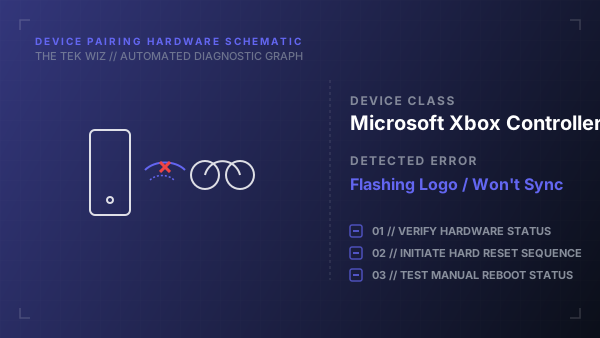
Step-by-Step Resolution
- 1
Turn off the Xbox console by holding the physical Power button on the front bezel down for 10 seconds until the system shuts down completely.
- 2
Remove the battery cover on the back of the Xbox controller and take out the batteries.
- 3
Use a clean cotton swab dipped in a small drop of isopropyl alcohol to rub any scale or oxidation off the metal spring terminal contacts.
- 4
Leave the controller powered down without batteries for 2 full minutes to drain the capacitors.
- 5
Insert fresh, verified working AA alkaline batteries or a fully charged rechargeable battery pack.
- 6
Press and hold the Xbox guide button to power the controller on (the logo should flash slowly).
- 7
Press and hold the physical Pair button on the top edge of the controller (near the USB-C port) for 3 seconds until the Xbox logo flashes rapidly.
- 8
Within 20 seconds, press and hold the physical Pair button on the front face of the Xbox console until the console power button flashes rapidly to execute the synchronization sequence.
Alternative Causes & Edge Cases
- Applies to Xbox Series X/S, Xbox One, and Elite Series 2 controllers.
- Weak battery voltage may allow the controller's low-power LED to blink while failing to supply enough current to ignite the high-power wireless radio transmitter.