How to Fix Sony DualSense (PS5) Blinking Blue Light / Connection Failure
Quick Diagnosis
A DualSense controller blinking blue repeatedly is unable to complete the security handshake with the console's Bluetooth receiver. This occurs when the controller's pairing register is locked or when a USB data transfer handshake is blocked by cable degradation.
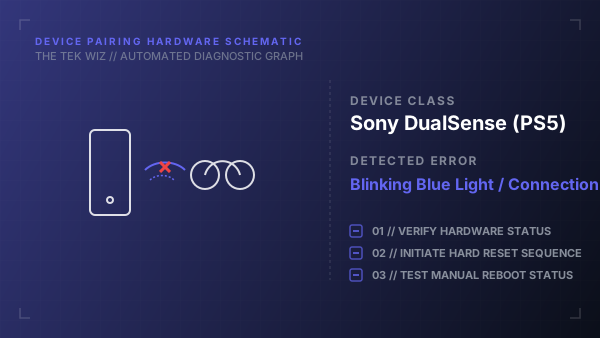
Step-by-Step Resolution
- 1
Turn off the PlayStation 5 console by holding the physical power button on the front panel until it beeps twice and goes dark.
- 2
Locate the small, recessed reset pinhole on the back of the DualSense controller (directly to the right of the Sony logo).
- 3
Insert a straightened paperclip or toothpick into the pinhole, pressing and holding the button inside for 10 seconds.
- 4
Verify the light bar goes completely unlit, indicating the internal controller pairing memory is flushed.
- 5
Unplug the USB-C cable from the front of the PS5 and inspect the interior of the port for compressed pocket lint or debris.
- 6
Clean the port with a burst of compressed air if necessary.
- 7
Connect the controller directly to the front USB-C port of the PS5 using a verified USB 2.0/3.0 data cable (do not use power-only charging cables).
- 8
Press the physical PS button on the center of the controller chassis to execute the physical cable handshake sync.
Alternative Causes & Edge Cases
- Applies to original DualSense and DualSense Edge controllers used with PlayStation 5 consoles or PC platforms.
- Degraded or loose internal battery lead connectors can cause the controller to lose its pairing memory as soon as the USB charging cable is detached.