How to Fix ASUS TUF Gaming Fans Spin at Max (Black Screen)
Quick Diagnosis
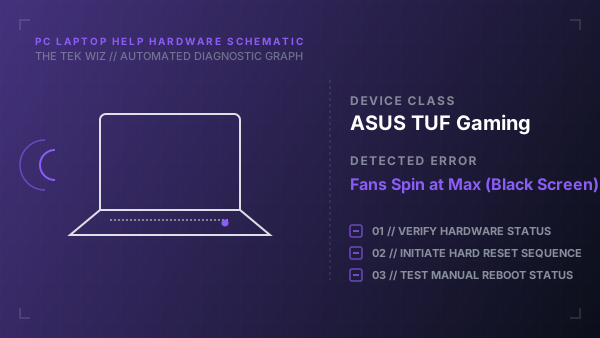
An ASUS TUF Gaming laptop that boots to a black screen with fans spinning at maximum speed has failed POST (Power-On Self-Test). This is commonly caused by an embedded controller (EC) lockup, BIOS firmware halt, or misseated RAM module.
Step-by-Step Resolution
- 1
Disconnect the AC power charger cable and all external cables (mouse, keyboard, monitors) from the laptop.
- 2
Press and hold the physical Power button on the keyboard down for a full 40 seconds to perform an EC (Embedded Controller) reset.
- 3
Release the Power button, plug only the AC adapter back into the laptop, and turn it on.
- 4
Wait up to 3 minutes; the system may undergo a physical memory training cycle with a black screen before showing display.
- 5
If the screen is still black, turn the laptop over, remove the bottom cover screws, and pop off the lower chassis cover.
- 6
Locate the two SODIMM memory slots, slide the side clips open, and remove both RAM modules.
- 7
Insert only one RAM stick into the primary slot (Slot A) and try booting. If it works, swap sticks to isolate a faulty RAM module.
Alternative Causes & Edge Cases
- On the ASUS ROG Strix, the fans-spin-black-screen pattern can indicate a physical short on the motherboard's GPU VRM power rail due to liquid metal leakage.
- On the ASUS TUF Dash F15, this symptom can occur if the physical display panel ribbon cable has loosened from its motherboard connector clip.