How to Fix Dell XPS 2 Amber 7 White LED Blink
Quick Diagnosis
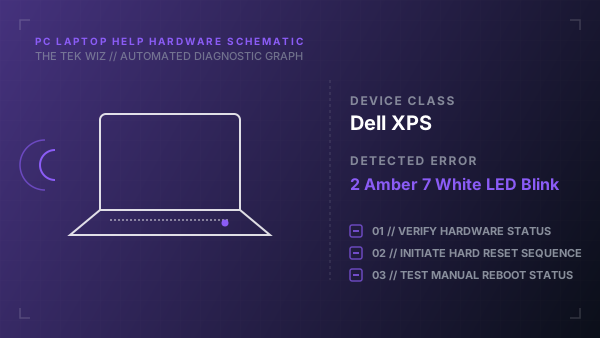
A status light sequence of 2 amber and 7 white blinks on a Dell XPS laptop indicates a physical display (LCD panel) connection failure or lack of display signal detection during POST.
Step-by-Step Resolution
- 1
Perform a hard reboot by holding down the Power button for 15 seconds, then release and restart the system.
- 2
Try forcing a display BIST (Built-In Self-Test): hold down the D key on the keyboard, and while holding it, press the Power button once.
- 3
Observe if the screen flashes solid color panels (Red, Green, Blue, White), which proves the LCD panel itself is physically intact.
- 4
If colors appear but POST still blinks 2 amber / 7 white, shut down the laptop, unplug it, and remove the bottom metal cover.
- 5
Disconnect the primary battery connector cable from the motherboard terminal socket.
- 6
Locate the display ribbon cable socket (labeled EDP or display) on the motherboard; pop open the metal locking latch bar.
- 7
Unplug the display ribbon cable connector, inspect the pins for damage, push it back in firmly, and lock down the latch bar.
- 8
Reconnect the main battery, attach the bottom cover, plug in the charger, and boot the system.
Alternative Causes & Edge Cases
- On Dell XPS 13 (9300 series), this code can be caused by physical strain on the hinge flexing the display ribbon cable beyond its extension limits, causing temporary pin disconnects.
- On Dell Precision mobile workstations, this LED sequence can indicate that the graphics card (MXM module) has shifted inside its physical socket rails.