How to Fix Brother HL-L2320D Solid Orange Error LED
Quick Diagnosis
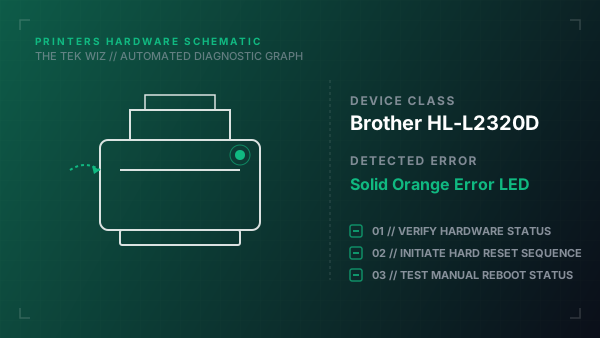
A solid orange error light on the Brother HL-L2320D indicates that the top panel cover is not fully latched, a paper jam has occurred inside the duplex tray feed, or the drum and toner assembly is physically misaligned.
Step-by-Step Resolution
- 1
Verify if the front cover is clicked shut completely on both sides.
- 2
Pull open the front cover and slide out the drum unit and toner cartridge assembly.
- 3
Pull out the paper input tray completely from the bottom of the printer.
- 4
Look inside the cavity for jammed paper sheets or tiny torn pieces; pull them out gently.
- 5
Locate the duplex feed tray at the rear of the printer; open the rear access door and extract any paper fragments.
- 6
Align the green drum unit frame tabs with the side rails inside the printer and slide it back in until it stops.
- 7
Push the green lock lever down and press the toner cartridge into the drum unit until it locks into position.
- 8
Close the front cover securely, ensuring it latches shut.
Alternative Causes & Edge Cases
- On the Brother HL-L2350DW, if the orange attention LED blinks while showing 'No Paper' error, the physical paper pick-up rollers may be dirty, requiring cleaning with a damp cloth.
- On the Brother HL-L2325DW, a solid orange error LED can also be triggered if the physical paper tray width guides are squeezed too tightly against the paper stack, causing sheet buckling.