How to Fix Canon PIXMA TR8520 Support Code 1401
Quick Diagnosis
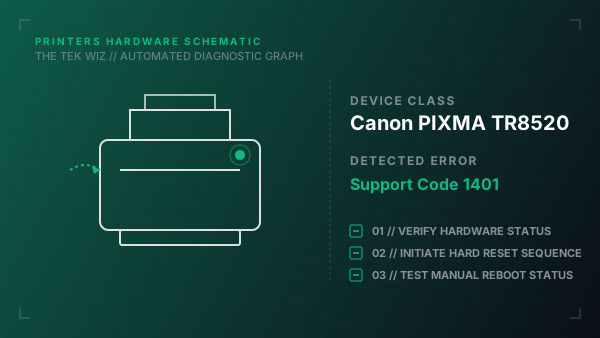
Support Code 1401 on the Canon PIXMA TR8520 indicates that the printer is unable to physically recognize one or more of the ink cartridges. This is usually caused by ink residue on the copper contact pins or a misaligned cartridge installation.
Step-by-Step Resolution
- 1
Open the scanning unit cover to slide the printhead carriage to the center access position.
- 2
Remove all ink cartridges by pushing the release tabs and lifting them from the slots.
- 3
Unplug the printer's power adapter from the wall outlet while the carriage is in the center.
- 4
Examine the gold-plated contact pins inside the carriage slots for ink smudges or corrosion.
- 5
Dampen a cotton swab lightly with isopropyl alcohol and clean the gold-plated contact pads on the back of each cartridge and the contact pins inside the carriage.
- 6
Let the contacts dry completely for 2 minutes before proceeding.
- 7
Reinstall each ink cartridge, pressing down firmly until it clicks and its red indicator light illuminates.
- 8
Close the cover, reconnect the power cord, and power on the printer.
Alternative Causes & Edge Cases
- On the Canon PIXMA MG3620, a similar 1401 error is triggered by the physical latching hinge not being fully depressed, preventing the FINE cartridge contacts from touching the carriage reader.
- On the Canon PIXMA PRO-100, if Support Code 1401 remains after cleaning, verify that the physical printhead locking lever has been pushed fully down into the locked position.