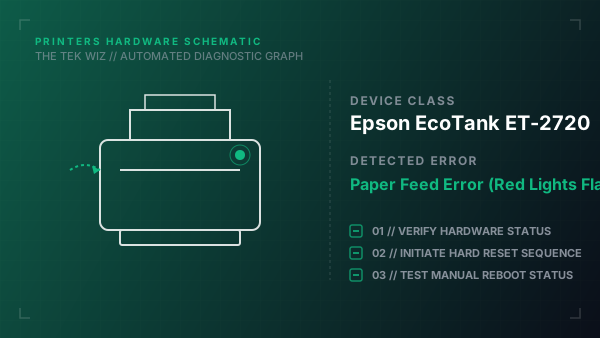
How to Fix Epson EcoTank ET-2720 Paper Feed Error (Red Lights Flashing)
Quick Diagnosis
Simultaneous flashing red lights indicate a mechanical jam or physical obstruction in the paper feed path or carriage track, preventing the printhead carriage or feed rollers from initializing correctly.
Step-by-Step Resolution
- 1
Power off the printer and disconnect the power cable from the wall outlet.
- 2
Lift the scanner unit to open the printer body and inspect the printhead carriage track for jammed paper, torn fragments, or foreign objects like staples.
- 3
Gently slide the printhead carriage by hand from side to side; if it resists or is locked, check the far-right capping station for physical obstructions.
- 4
Remove all paper from the rear feed slot, then shine a flashlight inside to check for debris and clean the rear feed roller using a damp cotton swab.
- 5
Close the scanner unit, plug the power cable back in, and hold the Stop button for five seconds to reset the printer's state.
Alternative Causes & Edge Cases
- On the Epson EcoTank ET-4750, a physical paper feed failure can be caused by the paper width sensor lens under the printhead carriage becoming coated in ink mist.
- On the Epson WorkForce WF-3720, paper feed failures often stem from a cracked main drive gear in the paper feed motor assembly.