How to Fix Google Nest Wifi Pulsing Yellow Light
Quick Diagnosis
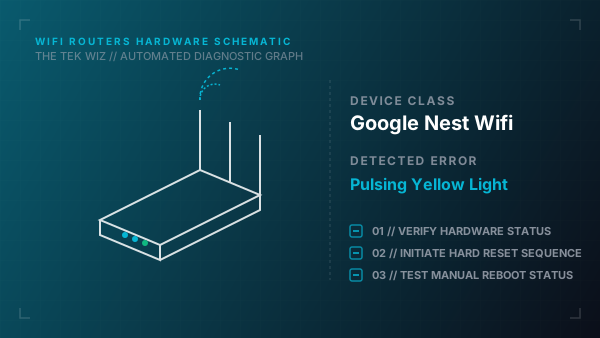
A pulsing yellow light on the base of a Google Nest Wifi router or Nest Wifi point indicates that the device has been physically reset and is ready for setup, or that a physical factory reset has been manually triggered via the bottom button.
Step-by-Step Resolution
- 1
Check if the physical reset button on the bottom of the device is stuck or pressed down under the rubber base.
- 2
Unplug the power cable from the Nest Wifi router, wait 20 seconds, and plug it back in to restart the device.
- 3
To proceed with a full factory reset, press and hold the reset button on the bottom of the Nest Wifi router for about 12 seconds until the light turns solid yellow.
- 4
Once the light is solid yellow, release the button and wait for the light to transition to pulsing white, which indicates it is ready for configuration.
- 5
Ensure the Ethernet cable from your modem is firmly clicked into the WAN port on the bottom of the Nest Wifi router.
Alternative Causes & Edge Cases
- On Google Nest Wifi Pro units, a pulsing yellow light can indicate a physical power delivery failure if a non-original USB-C power adapter is used, requiring the original 22.5W charger.
- On the original Google Wifi points (cylindrical nodes), a solid red light indicates a physical hardware error, requiring a full power cycle and factory reset.