How to Fix TP-Link Archer AX50 Flashing Power Light
Quick Diagnosis
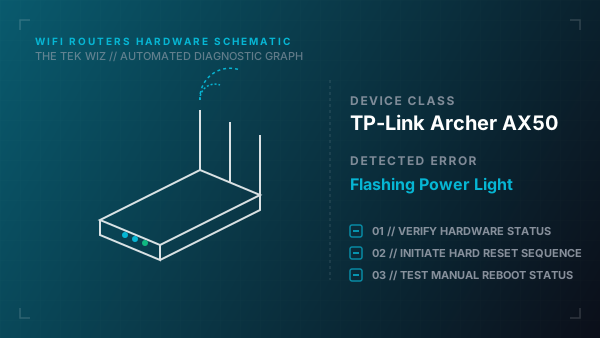
A flashing power light indicates that the router is stuck in a hardware boot loop or rescue mode. This is often caused by an unstable 12V power supply brick or an internal bootloader failure.
Step-by-Step Resolution
- 1
Unplug the power adapter from the back of the TP-Link Archer AX50 and the wall outlet.
- 2
Ensure the router is placed in a well-ventilated, open area, as overheating of the Intel chipset can cause physical system lockups and flashing LEDs.
- 3
Wait 5 minutes to let the router cool down and let the internal capacitors discharge completely.
- 4
Plug the power adapter directly into a wall outlet to ensure stable power delivery, avoiding surge protectors.
- 5
Insert a paperclip into the physical Reset pinhole on the back panel, press and hold it for 10 seconds, then release it to restore factory defaults.
Alternative Causes & Edge Cases
- On the TP-Link Archer AX10, a flashing power light can indicate that the router is stuck in WPS pairing mode, which can be cancelled by pressing the physical WPS button once.
- On TP-Link Archer AX6000 models, a pulsing red LED on the top panel indicates a physical cooling fan failure or ventilation blockage, causing automatic thermal throttling.