How to Fix TP-Link Deco Flashing Red Light
Quick Diagnosis
A flashing red status light on a TP-Link Deco node indicates that the unit has disconnected from the primary Deco router or its physical connection to the internet modem has failed.
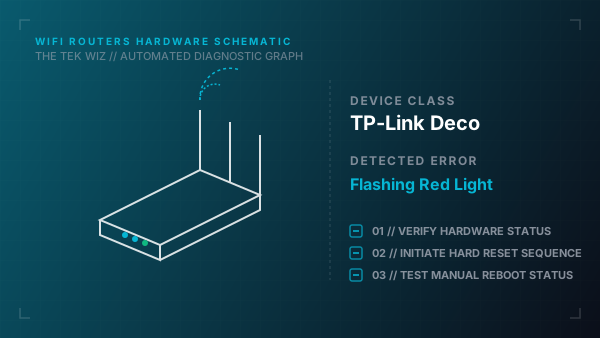
Step-by-Step Resolution
- 1
Unplug the Ethernet cable connecting the main Deco node to the modem, inspect the RJ45 pins, and reconnect it firmly.
- 2
Power cycle the main Deco by unplugging the power cord, waiting 30 seconds, and plugging it back in.
- 3
Verify the modem's physical DSL or coaxial cable connection is secure and its internet indicators show active signal.
- 4
For secondary Deco units showing flashing red, move them physically closer to the main unit to reduce wall attenuation.
- 5
Unplug and reconnect the power adapters of any secondary units to trigger a physical network handshake refresh.
- 6
Press the physical Reset button on the bottom of the Deco unit for 1 second using a pin to force a soft reboot.
- 7
If the issue persists, hold the Reset button for 5 seconds to perform a full factory reset and reconfigure the unit.
Alternative Causes & Edge Cases
- On the TP-Link Deco X20, a solid red LED indicates a total system hardware lockup or failure, requiring a power cycle and physical port swap.
- On the Deco M4, a blinking yellow LED indicates the device is currently performing a physical startup cycle or rebooting and should not be unplugged.